Problems Installing ePublisher
This section helps you troubleshoot issues related to installing ePublisher.
Error: Please Close all Running Sessions of Microsoft Word
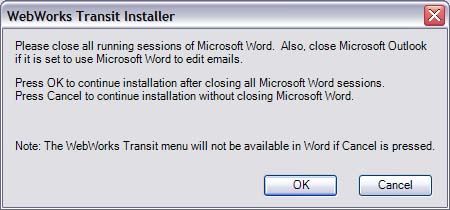
If you have any Microsoft Office processes running when installing ePublisher, including instances of Microsoft Word and Microsoft Outlook, ePublisher displays the following error message.
To resolve this issue
Close any running instances of Microsoft Word.
Close Microsoft Outlook.
Open Task Manager.
Click on the Processes tab.
Search for
WINWORD.EXE. You can click on the Image Name column to sort the processes alphabetically.If there is a
WINWORD.EXEprocess running, complete the following steps:Select
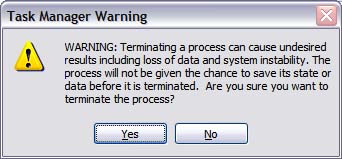
WINWORD.EXE.Click End Process to close all running Word processes. Task Manager displays the following warning.
Click Yes.
Close Task Manager, and then proceed with your ePublisher installation.
If there are no
WINWORD.EXEprocesses running, proceed with your ePublisher installation.
ePublisher Applications Are Running
The installer checks for running ePublisher applications before it changes anything. If ePublisher Designer, ePublisher Express, the ePublisher AutoMap Administrator, or an AutoMap job is running, an interactive installation displays a message that begins:
The following WebWorks ePublisher applications are running:followed by the names of the applications. They keep files open that the installer needs to update. Save any open projects, close the applications the message names, and then click Retry. Click Cancel to exit the installer without changing anything. A silent installation closes the applications itself, including any AutoMap job that is running. For more information, see the ePublisher Silent Installation Guide.
If an ePublisher application is running while an installer replaces its files, the installation fails with an error such as Error opening file for writing: ...\Adapters\WebWorks.Imaging.dll and can leave a partial installation behind.
To resolve this issue
Close ePublisher Designer, ePublisher Express, and the ePublisher AutoMap Administrator, and wait for any running AutoMap jobs to finish.
Run the installer again, and choose Update/Repair.
The WebWorks Rasterizer Printer Was Not Installed
ePublisher converts images in Microsoft Word and Adobe FrameMaker documents by printing them through the WebWorks Rasterizer printer, which the installer creates. If the installer cannot create the printer, the installation still completes and displays a message that begins:
The WebWorks Rasterizer printer was not installed (Rasterizer_Helper.exe returned <code>). Microsoft Word and Adobe FrameMaker image conversion needs this printer; everything else works.The usual cause is that the Windows Print Spooler service is disabled or stopped, often by a security policy.
To resolve this issue
Read
Rasterizer_Helper.login theRasterizerfolder of the installation, for exampleC:\Program Files\WebWorks\ePublisher\2026.1\Rasterizer\Rasterizer_Helper.log, to see why the printer setup failed.Make sure the Print Spooler service is running. If a security policy disables it, ask your IT team: the printer only prints locally, so the service can stay closed to remote clients.
From an elevated command prompt, run
Rasterizer_Helper.exefrom the ePublisher program folder to install the printer. For the exact command, see the Print Spooler section of the ePublisher Silent Installation Guide.